This page provides information for connecting Appsmith to LinkedIn, which allows you to retrieve user profile information, create posts, and manage LinkedIn content directly from your applications.
Connect LinkedIn
The following section is a reference guide that provides a complete description of all the parameters to connect to a LinkedIn datasource.
Authentication
LinkedIn uses OAuth 2.0. When you create a LinkedIn datasource in Appsmith, the OAuth client configuration is handled for you—simply click Authorize, review the requested permissions, and approve the connection. The OAuth flow will open LinkedIn in a browser tab where you can grant Appsmith access to your LinkedIn account.
The authentication process requires you to have a browser session and will redirect you to LinkedIn's authorization page where you can approve the connection.
Query LinkedIn
The following section is a reference guide that provides a description of the available commands with their parameters to create LinkedIn queries.
Get User Info
The Get User Info command retrieves the authenticated LinkedIn user's basic profile information using the LinkedIn API via a proxy. This is useful for fetching the current user's details, such as their user ID (sub), email, and name, which can then be used in other queries or displayed in your application. For additional details about this API, see the LinkedIn member details documentation.
Create Post
The Create Post command allows you to create a new post on LinkedIn. You can specify the post content, visibility settings, lifecycle state, and the author who will publish the post. This is useful for automating content sharing, scheduling posts, or integrating LinkedIn posting into your workflow. See the official Create a text share guide for the complete payload structure and field descriptions.
Author string
Provide the member’s identifier in the person:{id} format (for example, person:ABC123).
Example: If you want to use a static author ID:
person:123456789
Example: To build the value from another query:
{{"person:" + GetUserInfo.data.output.sub}}
Lifecycle State string
The lifecycle state determines whether the post is published immediately or saved as a draft. This field is mandatory and accepts two values:
PUBLISHED- The post is published immediately and becomes visible to the specified audience.DRAFT- The post is saved as a draft and can be published later.
Example: To publish a post immediately:
PUBLISHED
Text string
The text content of the LinkedIn post. This is the main message that will appear in the post. You can include plain text, and LinkedIn supports basic formatting. This field is mandatory.
Example: If you want to dynamically set the post content from an Input widget:
{{PostContentInput.text}}
// Example: "Excited to share our latest product update! 🚀"
Example: If you want to combine multiple data sources:
{{PostContentInput.text}} - Check out more at {{WebsiteInput.text}}
Visibility string
The visibility setting determines who can see the post. This field is mandatory and accepts two values:
PUBLIC- The post is visible to everyone on LinkedIn (public visibility).CONNECTIONS- The post is visible only to your LinkedIn connections.
Example: To make the post public:
PUBLIC
Create Post With Media
The Create Post With Media command allows you to create a LinkedIn post with rich content including media (images, videos, etc.) using the LinkedIn API via a proxy. This command supports advanced post creation with media attachments, descriptions, and titles, enabling you to create more engaging content on LinkedIn. Refer to LinkedIn’s image and video share documentation for the underlying API schema and best practices.
Author string
Provide the member’s identifier in the person:{id} format (for example, person:ABC123).
Example: If you want to use a static author ID:
person:123456789
Example: To build the value from the Get User Info query:
{{"person:" + GetUserInfo.data.output.sub}}
Lifecycle State string
The lifecycle state determines whether the post is published immediately or saved as a draft. This field is mandatory and accepts two values:
PUBLISHED- The post is published immediately and becomes visible to the specified audience.DRAFT- The post is saved as a draft and can be published later.
Example: To publish a post immediately:
PUBLISHED
Text string
The text content for the post commentary. This is the text that will appear alongside the media in the post. This field is mandatory.
Example: If you want to dynamically set the text content from an Input widget:
{{PostTextInput.text}}
Example: If you want to use static text:
Check out our latest product launch!
Media Category string
The media category specifies the type of media being shared in the post. This field is mandatory and accepts the following values:
IMAGE- For imageVIDEO- For videoARTICLE- For article
Example: To specify an image post:
IMAGE
Media Array string
The media array contains the media objects to be included in the post. This should be a JSON array containing media objects with properties like status, description, media (URN), and title. This field is mandatory.
The structure should follow LinkedIn's UGC (User Generated Content) API format:
[
  {
    "status": "READY",
    "description": {
      "text": "Image description"
    },
    "media": "urn:li:digitalmediaAsset:D4S22AQG7l8cHwx9SgA",
    "title": {
      "text": "Test Image"
    }
  }
]
Example: If you want to construct the media array dynamically:
[{
  "status": "READY",
  "description": {
    "text": {{ImageDescriptionInput.text}}
  },
  "media": {{RegisterAssetUpload.data.output.value.asset}},
  "title": {
    "text": {{ImageTitleInput.text}}
  }
}]
Note: The media field should contain a URN from a previously registered asset upload. Use the Register Media Upload Request action to create the asset before posting.
Visibility string
The visibility setting determines who can see the post. This field is mandatory and accepts two values:
PUBLIC- The post is visible to everyone on LinkedIn (public visibility).CONNECTIONS- The post is visible only to your LinkedIn connections.
Example: To make the post public:
PUBLIC
Register Media Upload Request
The Register Media Upload Request command registers a media upload request with LinkedIn to obtain upload URLs and asset identifiers for images or videos. This is the first step in uploading media to LinkedIn before creating posts with media attachments. See LinkedIn’s Register the image or video section for full request/response details.
Author string
Provide the member’s identifier in the person:{id} format (for example, person:ABC123).
Example: If you want to use a static author ID:
person:123456789
Example: To build the value from the Get User Info query:
{{"person:" + GetUserInfo.data.output.sub}}
Media Category string
The type of media to register for upload. This field is mandatory and accepts two values:
image- For image uploadsvideo- For video uploads
Example: To register an image upload:
image
Example response
{
  "value": {
    "mediaArtifact": "urn:li:digitalmediaMediaArtifact:(urn:li:digitalmediaAsset:D4S22AQG7l8cHwx9SgA,urn:li:digitalmediaMediaArtifactClass:uploaded-image)",
    "uploadMechanism": {
      "com.linkedin.digitalmedia.uploading.MediaUploadHttpRequest": {
        "uploadUrl": "https://www.linkedin.com/dms-uploads/sp/v2/D4S22AQG7l8cHwx9SgA/uploaded-image/B56Zq0rcQ_HQAE-/0?ca=vector_feedshare&cn=uploads&iri=B01-86&sync=0&v=beta&ut=2UJzfayWyECs01",
        "headers": {
          "media-type-family": "STILLIMAGE"
        }
      }
    },
    "asset": "urn:li:digitalmediaAsset:D4S22AQG7l8cHwx9SgA",
    "assetRealTimeTopic": "urn:li-realtime:digitalmediaAssetUpdatesTopic:urn:li:digitalmediaAsset:D4S22AQG7l8cHwx9SgA"
  }
}
Upload Media to URL
Refer to LinkedIn’s Upload image or video binary file documentation for the underlying HTTP requirements.
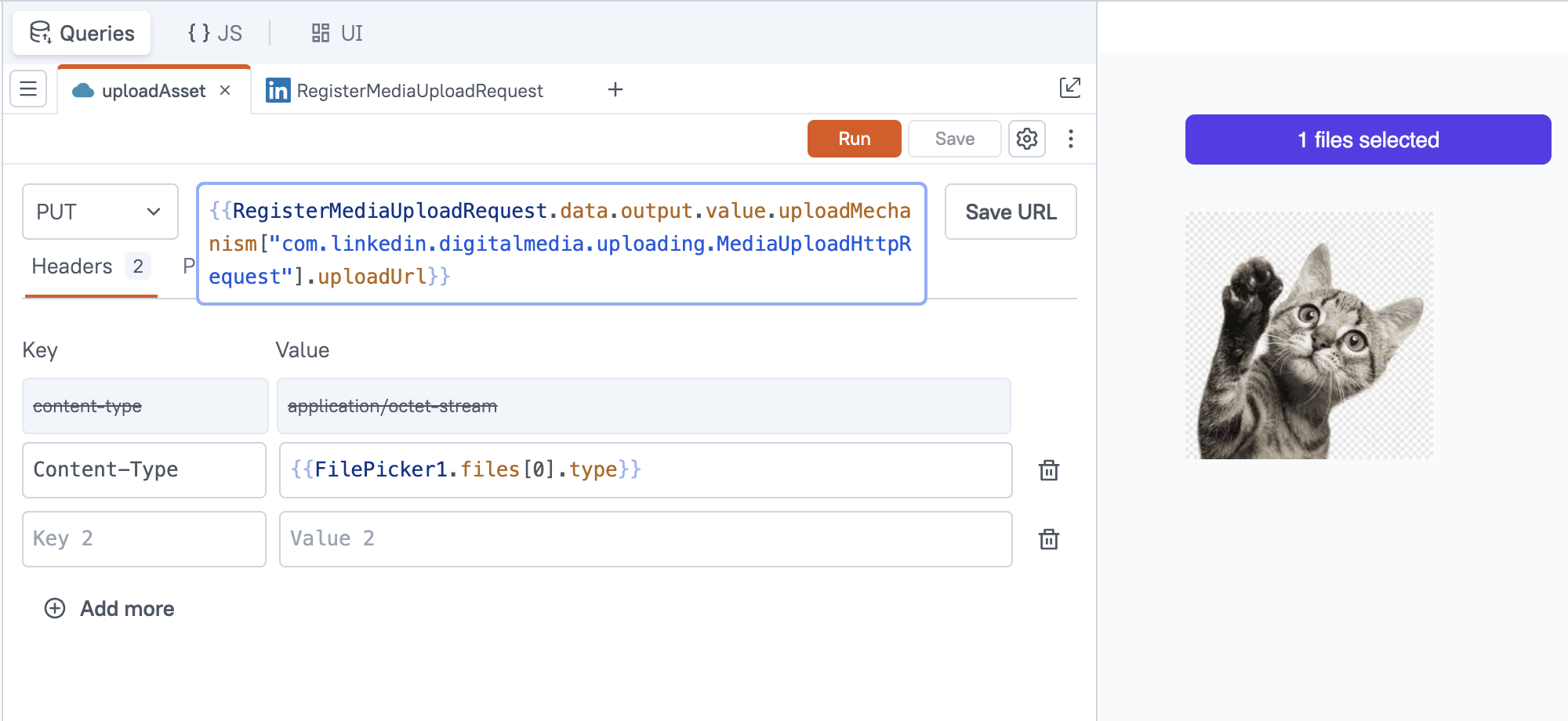
After you receive the uploadUrl, upload the binary file contents directly to LinkedIn using a REST API PUT request:
- Add a FilePicker widget and set its Data Format to Binary.
- Create a new REST API action and set Method to
PUT. - Set the URL to
{{RegisterMediaUploadRequest.data.value.uploadMechanism["com.linkedin.digitalmedia.uploading.MediaUploadHttpRequest"].uploadUrl}}. - Add headers:
Content-Type: {{FilePicker1.files[0].type}}
- Set the Body to Binary and provide
{{FilePicker1.files[0].data}}as the value. - Run the API to upload the image/video bytes, which completes the media upload for the returned
mediaURN.
Get Media Upload Status
The Get Media Upload Status command checks the upload/processing status of media (image, video, or document) on LinkedIn using the LinkedIn API via a proxy. This is useful for monitoring the status of uploaded media assets before using them in posts or other LinkedIn content. LinkedIn provides separate references for images, videos, and documents; consult those pages for the available fields and status values.
Media Category string
The type of media to check status for. This field is mandatory and accepts three values:
image- For imagevideo- For videodocument- For document
Example: To check status of an image:
image
Media ID string
The unique identifier of the media to check status for. This is the media ID returned when you register a media upload with LinkedIn's API. This field is mandatory.
Example: If you want to dynamically check status using a media ID from a previous query:
{{_.last(registerAssetUpload.data.output.value.asset.split(":"))}}
Example: If you have a specific media ID:
D4S22AQG7l8cHwx9SgA
Custom Action
Use Custom Action to make direct API requests to LinkedIn endpoints that are not included in the built-in command set. This is helpful when you need to access newer or less common LinkedIn features, perform advanced operations, or interact with LinkedIn API endpoints that aren't covered by the standard commands.
You can define the HTTP method, endpoint path, headers, and body to call any LinkedIn API route supported by their official documentation.
Note: Some LinkedIn API endpoints, such as the Get Profile By Id API, are only available to selected developer accounts that have been granted access by LinkedIn. If you receive an error when using these endpoints, it may indicate that your developer account does not have the required permissions.
Example: Get Profile By Id:
GET https://api.linkedin.com/v2/people/(id:{{ProfileIdInput.text}})
With headers:
LinkedIn-Version: 202402